
New · Daily Reports
The daily report your foreman actually finishes — and the hours land in payroll.
Assigned jobs only. Fill it on the tablet, Sign & Submit, and it goes out as a branded PDF to the GC. The crew’s hours flow straight into time tracking — no double entry, no Friday scramble.

Built for the foreman
Simple enough that it actually gets filed.
Open the Daily Reports tab and a foreman sees only the jobs assigned to him that day — nothing to hunt for. He taps a job, fills out what happened, and hits Sign & Submit. That locks it as an official record and stamps it with a report number.
From there it exports as a clean, branded PDF or emails straight to the project’s contacts. Every report is kept in History, and if someone misses a day, they can file it after the fact.

History
Every report, numbered and kept.
A submitted report becomes an official, numbered record — not a note in someone’s phone. The History tab keeps every one of them, filterable by job and date, so the day a GC asks about a pour three weeks ago you have the signed report, the crew, and the photos in one place.

Export & email
The finished report goes out in one tap.
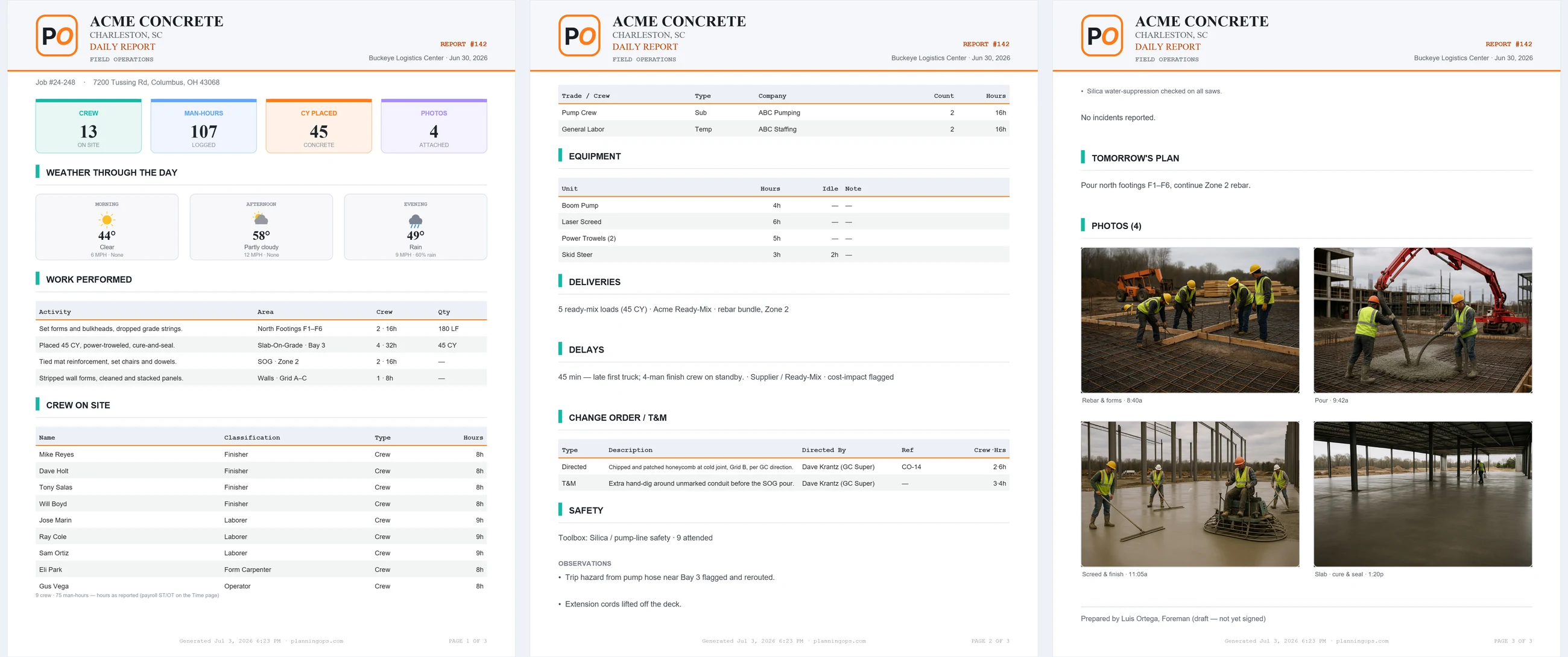
Sign it and you’ve got an official, numbered record — then send it. Export a clean, branded PDF, or email it straight to the project’s contacts right from the Hub. The GC gets the whole day — crew, quantities, delays, T&M, safety, and the jobsite photos — without you printing, scanning, or opening a separate email app.
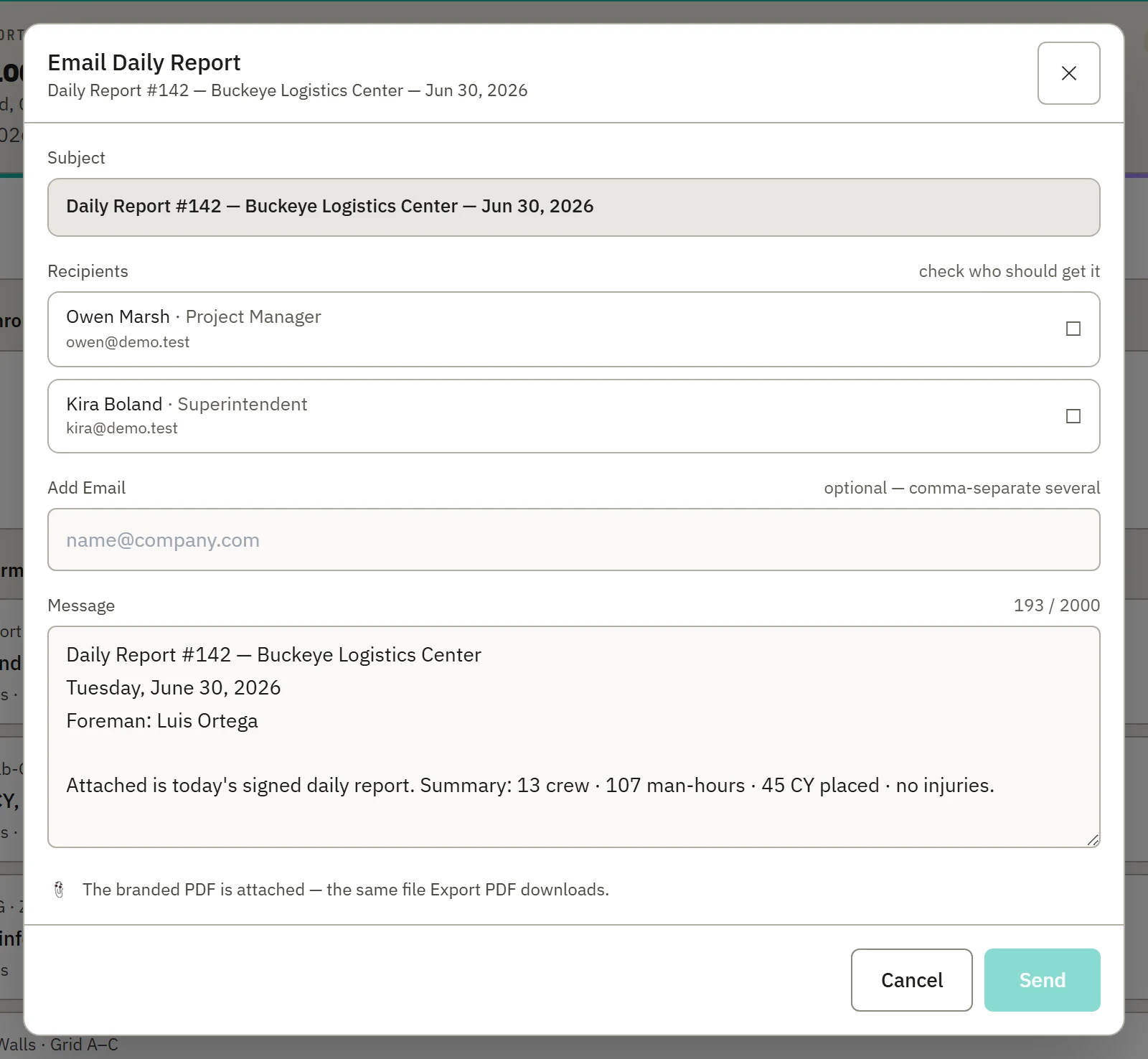
Email it to the GC — straight from the Hub
Pick who gets it from the project’s contacts — PM, superintendent, whoever’s on the job — or add an address on the fly. The branded PDF attaches automatically (the same file Export PDF produces), and every send is saved in History.
- Branded PDF
- Email to project contacts
- PDF attached automatically
- Saved in History
The integration
The hours only get entered once.
Here’s the part offices love: when a foreman fills in his crew and their hours and submits the report, those hours flow automatically into Manpower Time Tracking for that day. No double entry. If a man works two or three jobs in a day, his hours add up correctly across each report. And your office is always in control — any hours entered or corrected by hand take priority, so a report can never overwrite a manual entry.
- No double entry
- Multi-job hours add up
- Manual entries always win
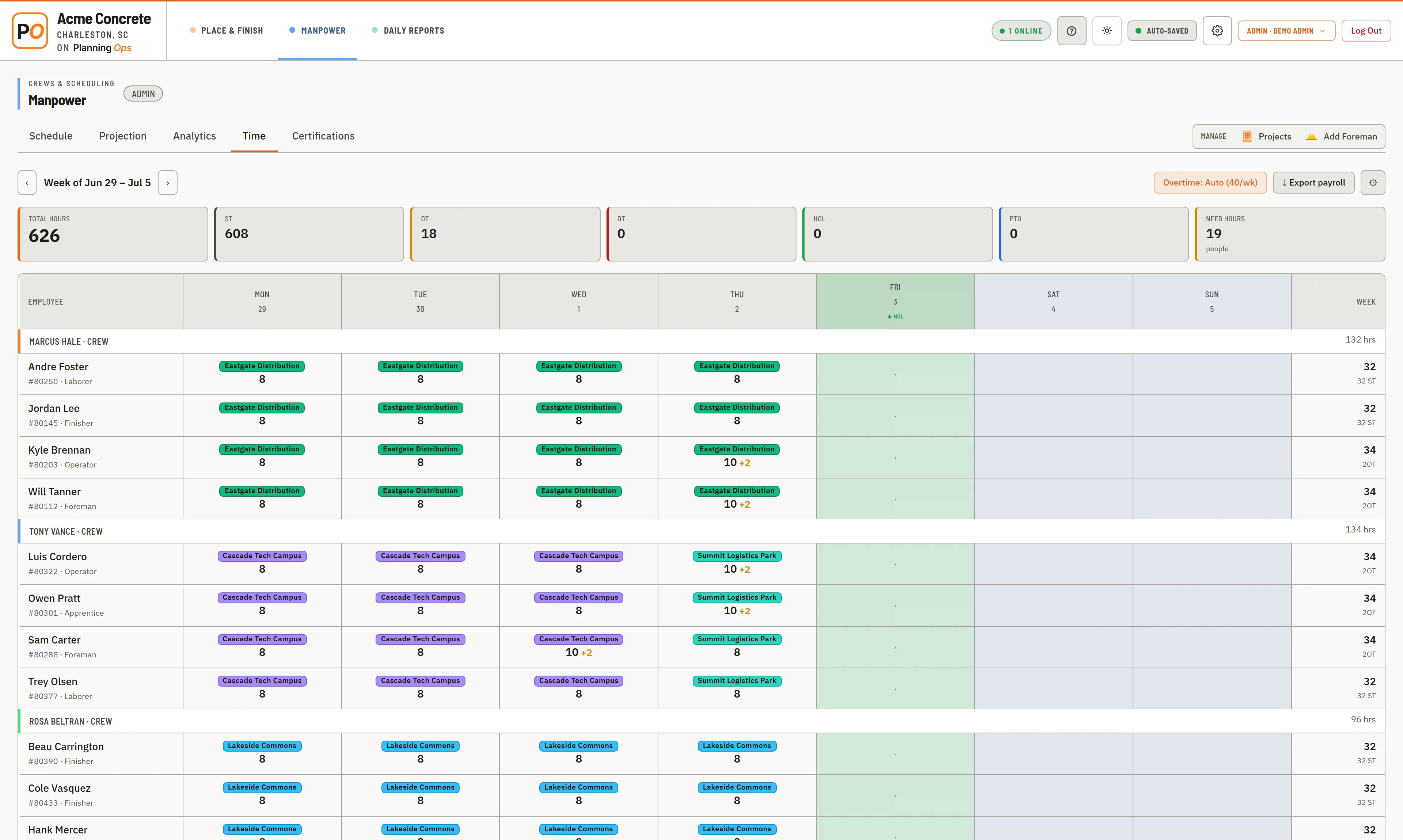
Field reporting and payroll hours are the same numbers — so Planning Ops makes them the same entry. Read why the daily report and the timesheet shouldn’t be two jobs →
The report
As much or as little as you want on it.
Turn on the sections that fit how you run — the rest stay out of your foremen’s way.
Crew on site
Every man and his hours, prefilled from the Manpower board so the crew just confirms.
Work performed
The day’s activities, locations, and quantities.
Delays & work stoppages
Documented the day they happen, not reconstructed later.
Change orders & T&M
Extra work, who directed it, and the materials used — captured so it can be billed.
Safety
Toolbox talks, observations, and injury / incident reporting.
Photos
Snapped right from the tablet; they print in the PDF.
Tomorrow’s plan & daily summary
The hand-off for the next morning.

Build your own report
Turn sections on and off — build the exact report you run.
Every section on the report is a switch in Control Panel — Crew, Equipment, Deliveries, Delays, Change Order / T&M, Safety, Photos, the works. Turn off what your crews don’t track and your foremen only ever see the fields that matter to you.
Flip a toggle and both the on-screen form and the branded PDF change to match — so the daily report is shaped around how your company actually runs, not a generic template you fight every day. Set it up once.

Roles & control
Who can do what.
Admin
Full access: manages users and settings, works every job, and can reopen and correct any filed report.
Editor
The office role: files and corrects reports for every job and assigns foremen (no account management).
Foreman
Files reports for the jobs assigned to him.
Viewer
Read-only.
Both Admin and Editor can reopen a submitted report to make a correction — so the office always has the final say.
One platform
A third tab, not a third tool.
Daily Reports sits right next to Place & Finish and Manpower — same hub, same login, no new app to learn and nothing extra to pay: it’s included in your plan. Your pour board, your crew planning, and your field reporting all in one place.

Why ours
Most daily-report apps stop at a PDF. Ours keeps going.
Plenty of tools will spit out a daily report. Here’s what makes ours the one the office actually wants — and the one the foreman actually files.
| Most daily-report apps | Planning Ops Daily Reports | |
|---|---|---|
| The crew’s hours | Stop at a PDF — the office re-keys them into payroll | Post straight into time tracking — no double entry |
| The crew list | Typed in again every day | Prefilled from the crew you already scheduled — the foreman just confirms |
| Another tool to run | A separate app and a separate bill | Included — same login as your pour board and crew planning |
| Who it is built for | Generic construction daily logs | Concrete self-perform: pours, T&M, cure, the way you actually run |
| Your crew’s cost | Often priced per user | Crew are free, unlimited viewers — you pay for the office, not the field |
The difference isn’t a nicer PDF — it’s that the report is wired into the same platform that runs your pours and your crews, so the day you file it does double duty: it feeds payroll, not just a filing cabinet.
Daily Reports — common questions
Is Daily Reports an extra charge?
Do the hours really sync to time tracking?
Can we turn off sections we don’t use?
Can a foreman fix a report after submitting?
Can we send reports to the GC?
Put the daily report on the tablet — start your 14-day free trial.
Assigned jobs only, Sign & Submit, branded PDF to the GC — and the crew’s hours land in time tracking. No double entry.
14-day free trial · no charge until day 15 · cancel anytime